

Prerequisites
Before you can configure and use Replit with Connect AI, you must first do the following:- Install the Replit IDE.
- Connect a data source to your Connect AI account. See Sources for more information.
- Generate an OAuth JWT bearer token. Copy this down, as it acts as your password during authentication.
- Obtain an OpenAI API key: https://platform.openai.com/.
Connect Replit to the Connect AI MCP
1
Open the official Replit MCP learning template available here. This template includes a preconfigured MCP runtime environment and sample configuration.
2
In Replit, click Remix. Replit does the following:
- Creates a editable copy of the project.
- Installs MCP dependencies.
- Initializes the environment.
3
Inside the project is a file named
mcp-server-config.json. Copy and paste the following into this file. Replace the authorization header with the credentials obtained in the prerequisites.4
Replit requires an LLM key to run MCP workflows. In the Replit Chat, when asked for an LLM key, provide your OpenAI API key. Replit stores this key securely in the Secrets Manager.
5
You can now open the Replit Chat panel and issue MCP commands.For example, enter the prompt 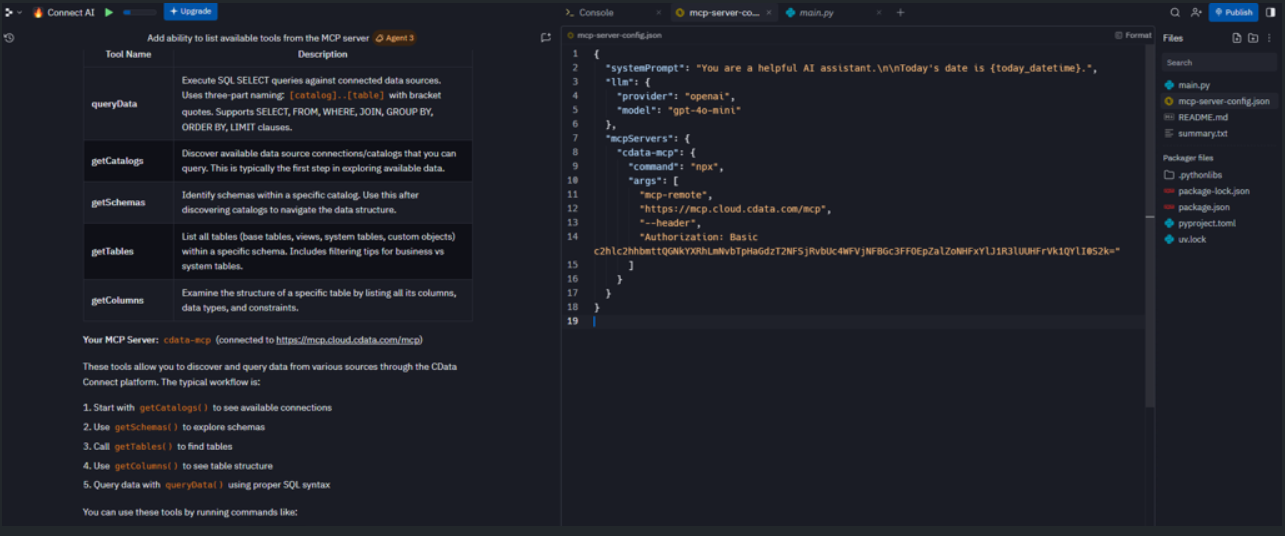
"List all MCP tools." The output looks like the following:6
To test whether Replit can communicate with the CData MCP successfully, enter the prompt:
"Show me all available catalogs." Replit should return a list of catalogs from Connect AI.7
You can now query your connected data source(s) in Connect AI using the Replit’s LLM.